
















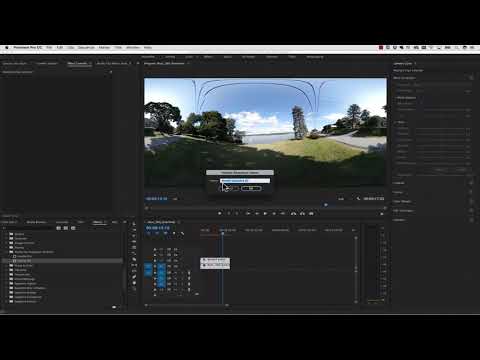
The Mocha VR plug-in for Adobe can be used for 360 video corrections such as stabilization, camera removal, orientation and more.
In this useful Premiere Pro video tutorial, Mary Poplin shows how to remove the camera operator, stabilize the horizon line and reorient Samsung Gear 360 footage using Mocha VR.
Patch and Clone in Premiere:
Apply Mocha VR effect to your clip
Set the Lens Distort render setting to a flattened (rectilinear) nadir view.
Duplicate clip on timeline for a feathered mask clone offset technique.
When remove is looking good, nest your layers and apply the copied Mocha VR effect. Choose “Undistort” to convert back to equirectangular (lat/long).
The cloned and patched nest layer can be comped back on top of the original clip.
Stabilize & Reorient:
Apply a new Mocha VR effect.
Draw a shape around an object on horizon and track forwards.
In Reorient tab, show Horizon line and align the line.
Hide the horizon tool to preview the stabilization.
If necessary, you can reorient the footage within the reorient module. (no need to apply another effect).
Back in Premiere effects panel, turn onRender Reorient.
Subscribe to our newsletter
Get all the latest news, blog posts and product updates from Boris FX, delivered directly to your inbox.
Welcome!
Thanks for opting-in to our newsletter. You'll receive an email momentarily with your confirmation.
